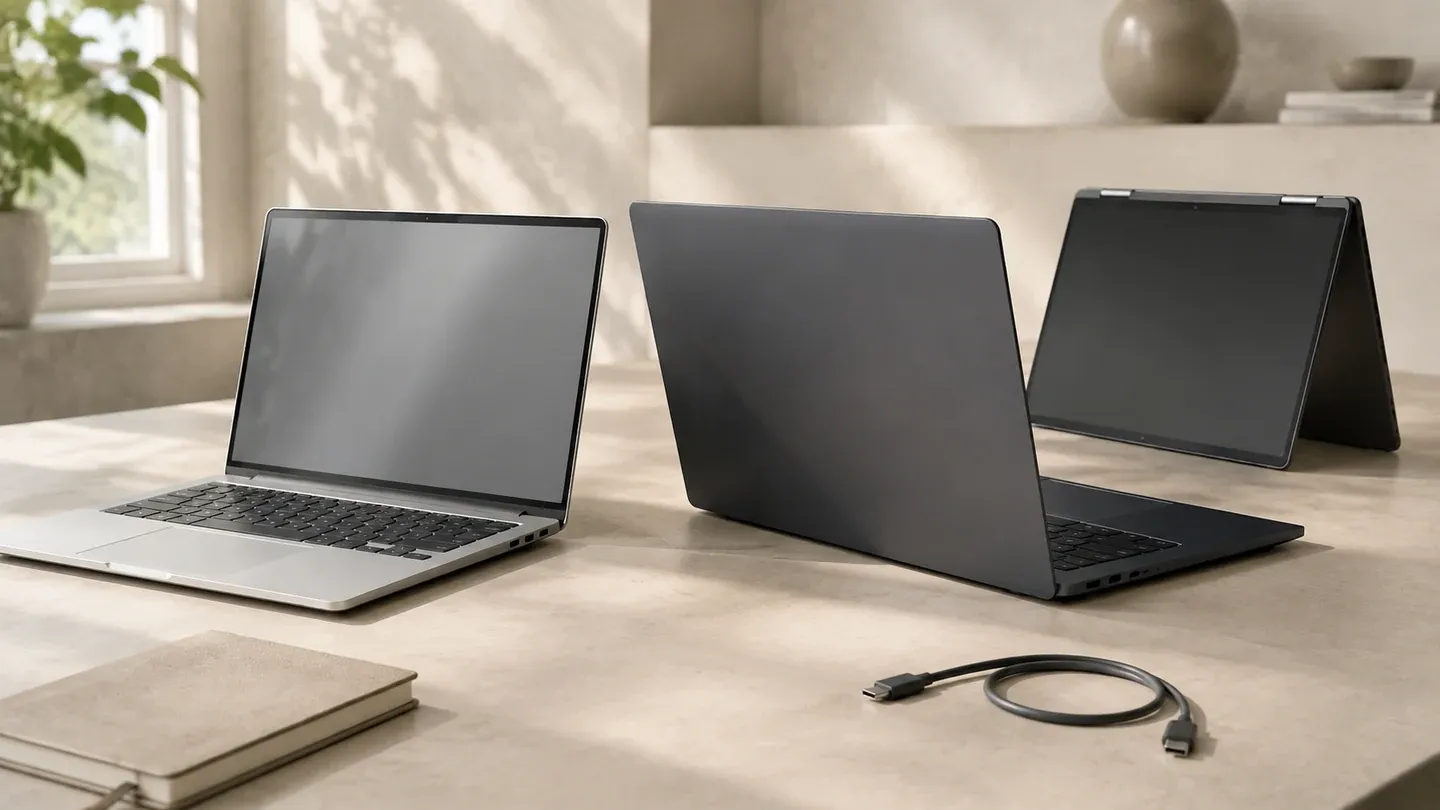
A useful laptop should handle your regular work comfortably, travel where you need it and remain practical for several years. Product pages make it easy to focus on a single headline specification, but everyday experience comes from the balance between processor, memory, storage, display, keyboard, battery and ports. Define your workload first, then compare complete configurations.
Key considerations
Define the heaviest regular task
Email, web browsing, video calls and documents are modest workloads for most current laptops. Large photo libraries, software development, engineering tools, local data work, 3D applications and modern games can demand more processing power, memory or dedicated graphics.
Choose for the most demanding task you perform regularly—not a rare hypothetical task and not only the easiest one. If a specialist application matters, check its current system requirements and operating-system compatibility before comparing hardware.
Balance processor and memory
Processor naming can be difficult to compare across generations. A newer mid-range processor may be a better everyday choice than an older model with a more impressive tier name. Look at independent performance information for the exact processor where available, and consider power efficiency as well as speed in a portable machine.
Memory affects how comfortably a laptop can keep applications and browser tabs active. Light users can work with a modest amount, while development tools, creative applications and large datasets benefit from more. Some thin laptops have memory that cannot be upgraded, so the configuration purchased may be the long-term limit.
Choose practical storage
Storage requirements depend on local files and applications. Cloud storage can reduce local demand, but it does not remove the need for space for the operating system, updates and offline work. Video, games and raw photo collections can fill a drive quickly.
Check whether storage is replaceable or expandable. A laptop with enough capacity from the start may be simpler, while an upgradeable model can offer flexibility. Maintain a separate backup regardless of drive size.
Evaluate the screen as a work surface
Display size influences portability and workspace. A larger screen may make spreadsheets or split-screen work easier, while a smaller chassis is easier to carry. Resolution affects usable detail, and brightness matters in well-lit rooms. Color accuracy becomes important for visual work but may not justify extra cost for basic documents and streaming.
A touch screen or convertible hinge is useful only if it fits how you work. These features can add flexibility, weight or cost. Try the hinge, trackpad and keyboard when possible because specification sheets do not capture their feel.
Plan for power and ports
Battery claims are produced under specific test conditions and may not match your workload. Video calls, high brightness, gaming and heavy processing reduce runtime. Treat manufacturer figures as a comparison reference, not a guarantee.
List the devices you connect: monitor, storage, mouse, camera card, headphones or network adapter. A thin laptop may require a hub. Include that cost and inconvenience in the comparison, and confirm whether supported USB-C ports provide charging, display output or high-speed data—similar-looking ports are not always equivalent.
Comparison factors
Create a small table for shortlisted configurations. Record the exact model or part number, because one laptop name can be sold with several screens, processors and storage options.
Compare these fields consistently:
- Operating system and required software compatibility
- Exact processor model and generation
- Installed memory and whether it can be upgraded
- Storage capacity, type and expansion options
- Display size, resolution, brightness and finish
- Weight, charger size and claimed battery context
- Ports, wireless standards and external-display support
- Webcam, microphone and keyboard features needed for your work
- Warranty provider, duration and service process
- Final price including adapters or essential accessories
Do not compare an entry configuration at one retailer with a higher-specification model at another and attribute the entire price difference to the seller.
Build quality and longevity
Chassis material alone does not determine durability. Look for hinge stability, keyboard flex, cooling behavior and access to repair or replacement parts. Reviews that include sustained workload and noise measurements can provide useful context, though results apply to the tested configuration.
Software and firmware support also contribute to useful life. Check the operating system’s requirements and the manufacturer’s support information. Battery replacement and storage access may matter more over time than a small performance difference on the day of purchase.
Common mistakes
Buying the lowest advertised configuration without checking it. A limited memory or storage configuration may be frustrating even when the product-family review is positive.
Paying for unused performance. High-end graphics or processors add cost and can affect heat, fan noise or battery life. They are valuable when your software uses them.
Ignoring the keyboard and display. These are the parts you interact with for hours. A capable processor cannot compensate for an uncomfortable input setup or unsuitable screen.
Assuming every port with the same shape has the same features. Confirm charging, display and transfer capabilities in the exact specification.
Forgetting support and returns. A clear return window is valuable when buying a device you have not handled. Business-critical users may also need service terms beyond the standard warranty.
Final thoughts
Choose a laptop as a complete tool. Begin with applications and portability, set minimum memory and storage requirements, then compare the display, keyboard, battery context, ports and support. The best value is the least expensive complete configuration that meets those needs with reasonable room to grow—not necessarily the cheapest listing or the fastest specification.